Showing posts with label iPad. Show all posts

Wednesday, September 23, 2015

1:1 or 1:None?

There are many great examples of one-to-one programs that have been well implemented and have achieved their goals. Go to any Edtech conference and you will hear presentations from folks that have done this well. Or pick up a copy of Project Red, which offers a research-driven roadmap for success in transforming a school, including the use of technology. There are websites galore that cater to great articles, tutorials, and research to help schools interested in how to implement a one-to-one program successfully, such as the K-12 Blueprint site, which regularly features blogs and articles on different schools and what they are doing with technology. 


So why should we be hesitant, or worse yet, not supportive of some proposed one-to-one initiatives? Many of the ideas for one-to-one that principals and other K-12 leaders have can be summed up with the phrase “I want to do a one-to-one program.” Many times this is the only idea expressed. Where is the vision and purpose? What is the educational outcome to which the program aspires? How does the leader see learning changing in a couple of years? These questions often can’t be answered, since there has been no thought as to why have a one-to-one initiative. Successful programs will have a goal, and with that a plan that provides a roadmap to help guide the project towards its goal. Why don’t more school leaders write a good plan? A lot of times it boils down to the desire for the shiny gadgets, and a lack of will and skill to write a solid plan and implement it. In those cases, it may be better to do one to none. 

Thursday, March 27, 2014

The Texas Calculator Debate

Over Spring Break in Texas, the Austin American Statesman published an article about Texas school districts being upset that they were going to have to spend $100 a calculator for eighth grade students taking the state math assessment, as required by the Texas Education Agency (TEA). The gist of several districts' concerns is that they would rather spend the $100 on a more versatile device for students' learning than a calculator that will one be used only for math. And many districts already have tablet 1:1 initiatives where both Apples' App store and Google's Play store have many free or low-cost graphing calculator apps. Why should these districts have to spend $100 more per device, especially given that the state issued the calculator mandate without any funding to support it? Fast forward to March 20 and the TEA's Commissioner of Education, Michael Williams, issued a press release allowing districts to pilot students using graphing calculator apps on tablets on a pilot basis. This was a welcome move for districts not wanting to spend money on calculators when they already have multifunction tablets that already can host a calculator app. Notably missing from the announcement was allowing other devices to be used for testing, such as laptops or Chromebooks, which also have graphing calculator apps. Nonetheless, it is refreshing to see a state agency trying to help districts use their funds for tools that best match students' needs. 

Sunday, January 6, 2013

Would you buy a new car with a blindfold on? Then why do so many schools ignore important factors when choosing devices for students?


Photo from: http://www.flickr.com/photos/squeakymarmot/2049742432/
You obviously wouldn't buy a car with a blindfold because there are so many factors in buying the car that are important, including design, features, layout, condition, and the cabin interior.  Many very well intention-ed educators are eager to put devices in the hands of students and jump on the bandwagon saying “we need to buy (insert device name here) for all students.”  This is often done without ever taking off the blindfold and getting down to looking at a schools’ and students’ needs, with a heavy dose of total cost of ownership evaluation to see what makes the most sense in a particular learning environment.

There are a host of great reasons why many different devices might assist students in their learning; Different curriculum (not just the book, but all that is done in a class to help students learn), grade levels, special needs, state requirements, testing mandates, student use cases and more should all be considered in an evaluation of devices for student. 

I suggest starting off with a needs inventory.  Get started by listing out all the things that are non-negotiable that you need the device and students to be able to do.  A short example list such as this would be a start: 
1.       Need to be able to print to classroom printers.
2.       Need 1024x1200 resolution to support testing mandates.
3.       Need ability to save documents to Google docs.
4.       Needs to save to local storage when not connected to the internet.
5.       Minimum 8 hours battery life.
6.       Science class requires USB based probe support.
7.       Social studies curriculum requires student to be able to display screen to entire class.

You also may want to list some things that would be nice, but are not true requirements such as: three year warranty, comes with a case, and has a CD drive.

At this point put this all into a big matrix or spreadsheet to start the evaluation.  It would map put like this but would have many more elements:
Device
Total Cost of Ownership
Fully Supports Learning Ecosystem
Support Centralized Application Distribution
Android Tablet


iPad


Windows Laptop


Chromebook


The first column in one that is often ignored and beyond the scope of this blog post, but it is very important.  Looking at all the costs related to student devices is imperative in an evaluation.  The upfront purchase cost is just one part, but support costs, repair costs, and maintenance costs, etc. must all be included to get an accurate picture.  A great in depth resource on total cost of ownership, or TCO, is available from the Consortium for School Networking (CoSN) at http://goo.gl/BtC7L

In the end when the matrix is filled out, you should have a very good idea of what device will end up best meeting the needs of students and the district.  While sometimes it seems easier to keep the blindfold on, in the end you may end up with something that is unworkable and not sustainable for the long term. Why end up with an unreliable Pinto, when you can have a much better device at a lower TCO?

Monday, November 12, 2012

What? My iPad can do more than email and Web? iPad productivity apps (cross post with SchoolCIO)


There is one device that follows me around all the time at work, when going to meetings, while traveling—and it also goes home with me each night. It is my iPad. It is my ultimate productivity tool. I see many tech directors, CIOs, principals, and superintendents carrying theirs around as well. But what often surprises me is how many leaders just use their iPad for email and Web browsing, not exploring many of the fantastic iPad productivity apps that really can make this device shine. Many great iPad productivity apps can help leaders become more organized and effective.
 
So I want to share many of the apps that I find very useful below in my productivity app list. This is by no means an exhaustive list, but it ought to really help you get a great start on using your iPad for more than email and Web browsing.
 
Note: All prices are accurate as of 10/28/2012.
  
Stock iPad Apps
Safari
Web Browser
Included with iPad
Contacts
Syncs with Exchange (Outlook) and Google
Included with iPad
Email
Syncs with Exchange (Outlook) and Google
Included with iPad
Calendar
Syncs with Exchange (Outlook) and Google
Included with iPad
Camera
Takes pictures and video.
Included with iPad
Photos
Access, email, and share your photos.
Included with iPad
FaceTime
Real time video conference with other iOS users.
Included with iPad

Notetaking Apps
Evernote
The e-filing note cabinet of choice – use as your memory.  Stores emails, text notes & audio.  Syncs across many devices and web.  You can easily share notes.  Includes a great search feature!
Free
Notability
Any easy to use simple text, written, audio and photo note app – email or PDF notes.
$0.99
GoodReader
PDF annotation and reader software – a bit complex but very powerful, with Google Drive and Box support amongst many others.
$4.99
PDF Expert
Simple PDF annotation with WiFi transfer and Box support.
$9.99
Audio Memos Free
Voice recorder, email up to 3mb files, WiFi download.
Free
Dragon Dictation
Voice to text transcriptions.
Free

Office Apps
Pages, Numbers, and Keynote
Apple’s GREAT office apps for Word Processing, spreadsheet, and presentations.  These are the apps to use if using iPad for content creation.
$9.99 each
QuickOffice Pro HD
All in one office suite – edits Microsoft Office docs and syncs with Box.net and WiFi file transfer. This more affordable suite is geared towards just editing.

$19.99
CloudOn
Cloud-Based MS Office with Box synchronization
Free
Digits Calculator
Great desktop calc with editable, comment-able eTape that can be emailed.
$1.99
Dictionary.com
Great dictionary and thesaurus.
Free

Book  Apps
iBooks, Nook & Kindle
eBooks from the big three.
Free

News Apps
Pulse
Incredible customizable news aggregator.
Free
FlipBoard
Another great customizable news aggregator.
Free
News360
Great news aggregator with excellent social media integration.
Free

Other Useful Apps
Box
Box is a great secure corporate level file sharing service. Use this app to synchronize files to the cloud and web browser.  Can sync files between computer and iPad.
Free
Twitter
Great social networking tool to expand your PLN.
Free
iThoughtsHD
Easy mind mapping with Image & PDF export, Box, and WiFi sync.
$9.99
Skitch
Simple annotation app – take a photo and mark up ideas and notes (syncs to Evernote).
Free
Explain Everything
Annotate and narrate on screen then export video – great way to narrate presentations then share.
$2.99
VDI and Remote Desktop Clients (I use Citrix)
There are many virtual desktop clients that you can often use to access work from remote locations or which you can use at work to get a full Windows desktop on your iPad. 
Vary

Monday, July 23, 2012

Judson ISD Connect App featured in San Antonio Express News

The San Antonio Express News featured the Judson ISD Connect app in a recent article at http://www.mysanantonio.com/default/article/Popular-app-can-check-grades-report-bullies-3689123.php


The Judson ISD Connect app was developed rapidly using the Conduit Mobile platform.


Friday, May 4, 2012

Judson ISD Technology Services May 2012 Uplink Newsletter Published

Judson ISD's May 2012 Technology Services' Uplink newsletter has been published at http://www.judsonisd.org/district/technology/newsletters/JudsonISDTechnologyServicesUPLINKNewsletterMay2012.cfm

UPLINK :: Technology Services Newsletter

There are many informative articles, including: Windows 7 upgrades, Improving Email Services, iPad Apps for Productivity Enhancement, Using Twitter to Create a Personal Learning Network, and more!.  So please take a few minutes and get updated on technology at Judson ISD by reading our May 2012 newsletter.

Wednesday, May 2, 2012

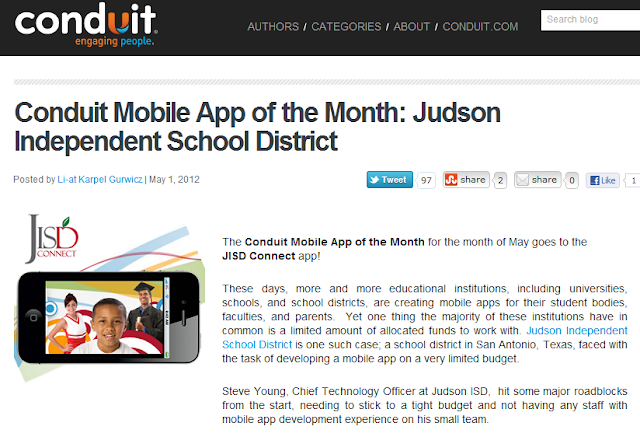
Judson ISD Connect! App named App of the Month by Conduit Mobile

Our Judson ISD Connect! app today was named the May 2012 app of the month by Conduit Mobile.  At the same time we are proud to announce a major upgrade of the app with addition of Parent Center mobile, which adds grades, attendance, and more for both student and parent viewing.


The full blog post on the app of the month is available here on the Conduit Blog.


Blog on Conduit Mobile awarding Judson ISD Connect! as May 2012 app of the month

Monday, March 26, 2012

iPad Productivity Apps (for Principals & Administrators)

I am going to be training our principals (and other administrators) on productivity apps for better utilizing their iPads.  I have talked with several people, who have given some great ideas and many people across the state have contributed ideas through the TECSIG email list.   So far, here is the list of iPad apps for productivity (this list would probably work for more than just educators):


iPad Apps for (Principal and Administrator) Productivity
Stock iPad Apps
Safari
Web Browser
Included with iPad
Contacts
Syncs with Exchange (Outlook)
Included with iPad
Email
Syncs with Exchange (Outlook)
Included with iPad
Calendar
Syncs with Exchange (Outlook)
Included with iPad
Camera
Takes pictures
Included with iPad
Photos
Email, tweet, your photos..
Included with iPad
FaceTime
Real time video conference with other iOS users
Included with iPad

Notetaking Apps
Evernote
The e-filing cabinet of choice – use as your memory.  Stores emails, text notes & audio.  Syncs across many devices and web.  Great search!
Free
Notability
Any easy to use simple text, written, audio and photo note app – email or PDF notes
$9.99
GoodReader
Great PDF annotation and reader software
$4.99
PDF Expert
Simple PDF annotation with WiFi transfer and Box support
$9.99
Audio Memos Free
Voice recorder, email up to 3mb files, WiFi download
Free
Dragon Dictation
Voice to text transcriptions
Free

Office Apps
Pages, Numbers, and Keynote
Apple’s GREAT office apps for Word Processing, spreadsheet, and presentations.  These are the apps to use if using iPad for content creation.
$9.99 each 
QuickOffice Pro
All in one office suite – edits Microsoft Office docs and syncs with Box.net and WiFi file transfer.  This more affordable suite is geared towards just editing.
$14.99
CloudOn
Cloud-Based MS Office with Box synchronization
Free
Digits Calculator
Great desktop calc with editable, comment-able eTape that can be emailed
$1.99
Dictionary.com
Great dictionary and thesaurus
Free

Book  Apps
iBooks, Nook & Kindle
eBooks from the big three.
Free

News Apps
Pulse
Incredible customizable news aggregator
Free
FlipBoard
Another great customizable new aggregator
Free
Texas Tribune
Stay on top of Texas news and the legislature
Free

Other Useful Apps
Box
App to synchronize files to the cloud and web browser..use to move files between PC and iPad
Free
Citrix
Get a JISD Windows desktop and use MS Office,  access your H and T drives, etc
Free
Twitter
Great social networking tool to expand your PLN
Free
iThoughtsHD
Easy mind mapping with Image & PDF export and Box synchronization
$9.99
Skitch
Simple annotation app – take a photo and mark up ideas and notes (syncs to Evernote)
Free
Explain Everything
Annotate and narrate on screen then export video – great way to narrate presentations then share
$2.99